
Create More with Jatayu Tools
Discover JatayuOS apps with original screenshots: Creative Studio for image and PDF workflows, Aarambh, Wallpaper Changer, Kavach, Sarkar Setu and Utsav.
A new desktop becomes useful when you can see where it fits into your day. Can it help you prepare a PDF, resize an image, find an application or change a wallpaper without a long search through settings?
JatayuOS includes a collection of Jatayu applications alongside familiar software such as Firefox ESR, LibreOffice and Dolphin. The project-specific collection covers a welcome application, image and PDF workflows, wallpaper selection, security awareness, public-service links and festival information.
This guide explains what those applications are for and where to begin. The interface descriptions are based on screenshots supplied by the JatayuOS maintainer. They show the available controls; they do not stand in for completed-task benchmarks or independent testing of every feature.
Jatayu apps at a glance
| Application | Main purpose | A useful starting point |
|---|---|---|
| Aarambh | Welcome, help and desktop shortcuts | Find guidance during your first session |
| Jatayu Tools Creative Studio | Image and PDF workflows | Explore an operation using a copy of a sample file |
| Wallpaper Changer | Desktop background library | Preview and apply a background |
| Kavach | Security and scam awareness | Read the guidance and check relevant settings |
| Sarkar Setu | Public-service website directory | Find a service’s official portal |
| Utsav | Indian festival and Panchang information | Browse cultural dates and related information |
For a shorter introduction, visit the Jatayu Apps page. If you have not yet started the desktop, the first-steps guide explains the live environment and installation preparation.
Aarambh: find help and applications after boot
Aarambh is the welcome application. Its screen places documentation, application shortcuts and installation entry points together, so you can begin with a guided overview rather than opening settings at random.
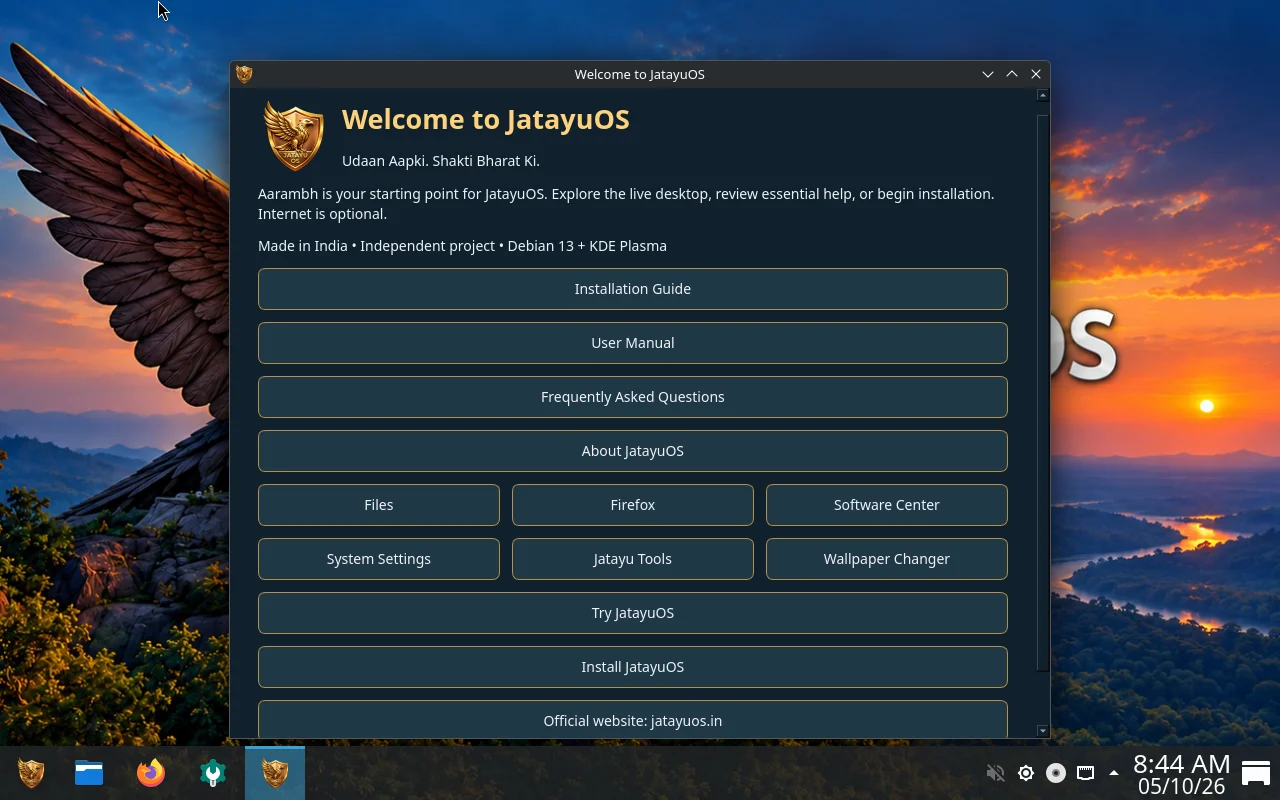
The screenshot shows buttons for the Installation Guide, User Manual, Frequently Asked Questions and About JatayuOS, plus shortcuts for common applications and settings. It also includes Try JatayuOS and Install JatayuOS.
If you are new to the system, a sensible sequence is to read the installation guidance, explore the live desktop, and check the applications and hardware you need before installing. You can also use the website documentation to check which versioned documents are currently available online.
Aarambh is a navigation starting point. The actual file manager, browser and desktop settings remain separate applications with their own controls.
Creative Studio: image and PDF workflows in one workspace
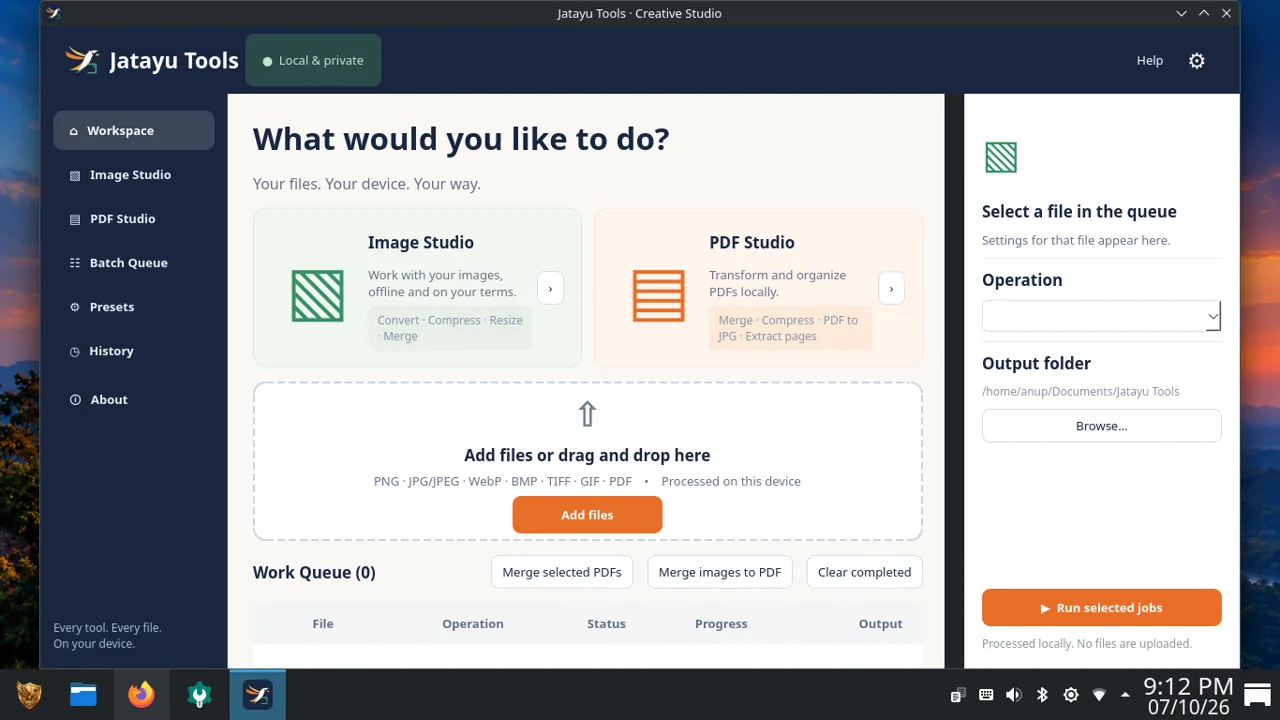
Jatayu Tools Creative Studio is the application shown in the cover screenshot. Its interface divides the workspace into Image Studio, PDF Studio, a file queue and operation/output settings.
The screenshot shows image options for conversion, compression, resizing and merging. PDF Studio lists merging, compression, PDF-to-JPG conversion and page extraction. Navigation entries also include Batch Queue, Presets, History and About.
Those labels make it easier to identify a relevant workflow. For example, if you need to reduce an image for a website, begin with Image Studio and inspect the compression or resize controls. If you need to organize selected PDF pages, inspect the PDF operation that fits that task.
How to approach your first task
Use a non-sensitive sample file or a copy of an original while you learn the application:
- Open the appropriate studio and read the instructions for the operation you want.
- Add the sample file. The workspace also presents a drag-and-drop area.
- Select the file in the queue and review its operation settings.
- Choose an output folder you can find again.
- Check the selected jobs before running them.
- Open the output and verify that the result suits your purpose.
For an image, check its dimensions, appearance and file size. For a PDF, check page order, readability and whether the required pages are present. A smaller file is not automatically a better result if text or image detail becomes hard to read.
These are recommended checks for using the workflow, not a claim that a particular conversion or compression result has already been measured.
Local processing: understand the scope
The supplied Creative Studio screen labels its workspace “Local & private” and says files are processed on the device. That describes the application’s intended file workflow.
It should not be extended into a blanket claim about every application, browser extension or online service used on JatayuOS. Review the relevant software and its documentation when handling sensitive material. Keep originals until you have checked the output, especially when running a batch operation.
Wallpaper Changer: choose and preview a background
Wallpaper Changer presents a visual library, with thumbnails in the centre and details for the selected wallpaper on the right.
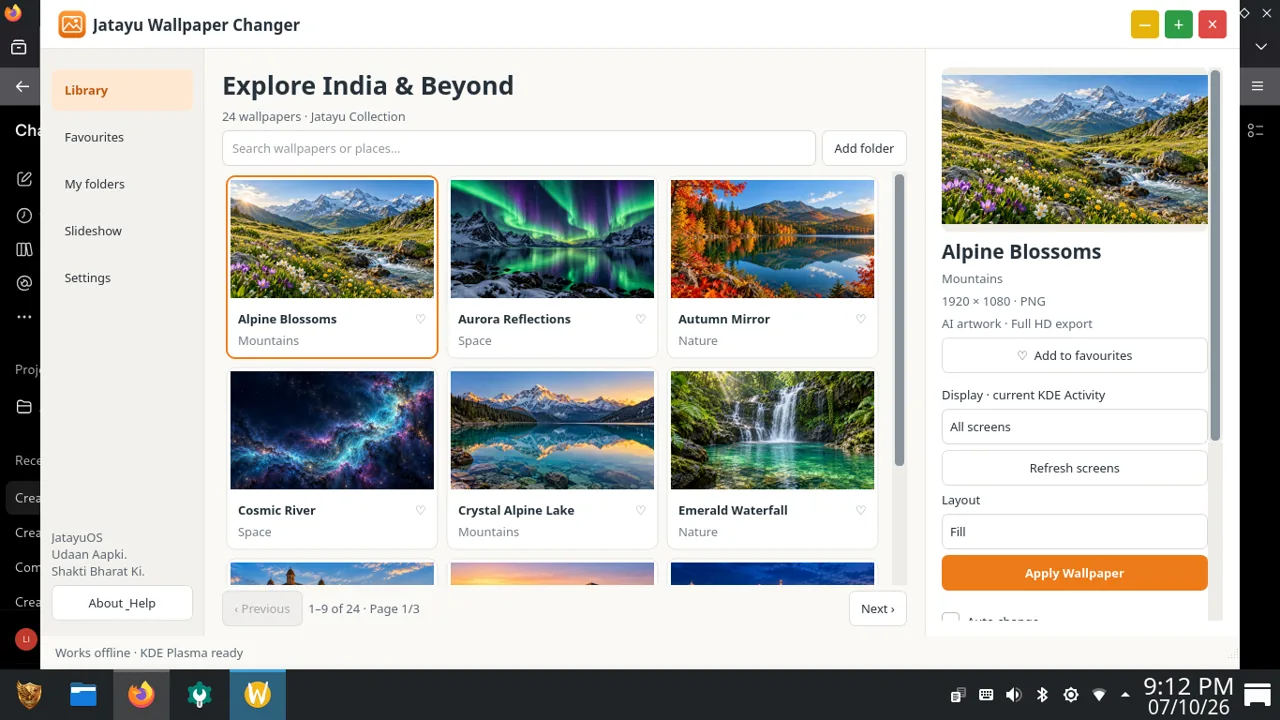
The supplied interface includes Library, Favourites, My folders, Slideshow and Settings. The selected wallpaper panel shows a preview, display selection, layout and Apply Wallpaper controls.
For a first change, select a background in the library, check the preview, review the display and layout settings, then apply it. On a computer with more than one screen, check which display is selected before confirming.
The screenshot also identifies the selected artwork’s dimensions and includes an AI-artwork label. Wallpaper artwork is separate from the original screenshots used to document the application. An application screenshot can show AI-created wallpaper without becoming an AI-generated interface mockup.
Explore your own folders or slideshow settings after the basic selection works for you. The availability and behavior of particular options should be checked against the version you are using.
Kavach: security and scam-awareness guidance
Kavach presents a security-awareness dashboard, with navigation for scam alerts, safe practices, a security checklist and reporting information. The supplied interface also points toward system settings and update-related checks.
Use it as a starting point for learning safer habits and finding relevant controls. A dashboard label or checklist should not be treated as an independent audit of your device’s security, or as proof that a system cannot be compromised.
Keep applications updated when internet access is available, review settings you understand, and verify current reporting information with the relevant official service. This overview does not reproduce emergency numbers or certify the reporting details shown in an older interface screenshot.
You can see the current supplied Kavach image on the Jatayu Apps page. For problems with the application itself, report the version and exact behavior through JatayuOS support.
Sarkar Setu: a directory of public-service links
Sarkar Setu is intended to help you find public-service websites. The supplied screen shows a search field and categories including identity, finance, travel, education and other service areas.
Its role is to direct you to the relevant portal. The external website controls its own availability, eligibility rules and application process. Finding a link in a directory does not establish that you qualify for a service or that its requirements have remained unchanged.
Check the destination’s domain and current instructions before entering information. Online services also need an internet connection, even when the directory application itself is available locally.
JatayuOS is independent of the Government of India. Inclusion of service links does not imply government affiliation, funding or endorsement. More project context is available on the About page.
Utsav: festival and Panchang information
Utsav brings Indian festival and Panchang information into a dedicated application. The supplied screen presents a daily view and navigation for a calendar, upcoming events, favourites and exploration.
It offers a place to browse cultural information alongside the everyday desktop tools. For a date-sensitive activity, check the selected region or location, the computer’s date, and the application’s current data. Regional observances and local timing need care; this overview does not independently validate the Panchang calculations.
The Apps page includes the supplied interface image. A future walkthrough with verified date and location settings will be more useful than treating a single screenshot as proof that every entry is accurate.
Familiar upstream applications are included too
The Jatayu collection sits alongside software from the wider Linux ecosystem:
- Firefox ESR provides a starting point for web browsing. Visit Mozilla for upstream information.
- LibreOffice covers document, spreadsheet and presentation work. The official LibreOffice website provides product information and learning resources.
- Dolphin is the KDE file manager used for everyday file navigation.
For your own workflow, test representative copies of the files you use. Document formatting, website requirements and specialized software needs vary, so the presence of an application is only the first part of checking suitability.
The Credits & licences page identifies upstream projects and explains that software, documents and artwork can have different licence terms.
Android apps and Waydroid: what is included?
JatayuOS includes Waydroid packages, but Android images and initialization are separate. Their presence does not establish that every Android application works immediately.
Hardware, graphics and the application itself affect compatibility. Use the official Waydroid documentation for upstream application guidance, alongside any JatayuOS-specific setup notes published for the release. Do not assume that instructions for installing an APK also complete the initial Android environment setup.
Questions about the app collection
Do all JatayuOS apps work offline?
Different activities have different requirements. The Creative Studio interface describes local file processing, while visiting websites through Firefox or Sarkar Setu requires connectivity. Check the individual application and operation rather than applying one offline claim to the whole collection.
Are these applications part of the operating system download?
The website introduces them as part of the JatayuOS collection. For the precise versioned package list, use the release manifest when published alongside the verified release. Screenshots alone do not establish every package version in the final ISO.
Where should I report a problem?
Use Support & contact. Include your JatayuOS version, the application, the operation selected and the actual error. For file-processing issues, describe the file type and use a non-sensitive sample if one is needed to reproduce the problem.
Choose one task and start there
Begin with Aarambh if you need orientation, Creative Studio if you have an image or PDF task, or Wallpaper Changer if you want to personalize the desktop. Trying a small, familiar task is a practical way to learn where the tools fit into your routine.
For the release plan and download status, read the JatayuOS 1.0 Udaan overview. For your first boot, return to the getting-started guide.
Interface descriptions are based on original screenshots supplied by the JatayuOS maintainer. Completed-task examples and tested compatibility results will be added when available.
Keep exploring.

Introducing JatayuOS 1.0 Udaan
Meet JatayuOS 1.0 Udaan: a free Debian 13 desktop with KDE Plasma, Jatayu Tools, live-session access and offline installation, made in India.
7 Oct 2026
JatayuOS Beginner Guide: Live Login and Installation
Try the JatayuOS live desktop, use the live login, verify your ISO and prepare for installation with practical steps and original screenshots.
6 Oct 2026